Quick Reference Guide: Auto-Add Accounts with Enterprise Workflow
What is it?
Enterprise Workflow enables financial institution employees to automate the process of adding new accounts to Treasury Management companies and assigning eligible product features. These features include information reporting, stop payments, transfers, wires (within the primary associated wire company), account reconciliation, and positive pay. This functionality is available only for accounts that are primarily associated with the parent Treasury Company CIF.
Two workflow templates are available:
- Automatic workflow: Uses EES event 710 to automatically initiate the workflow.
- Manual workflow: Allows an employee to manually enter the account number and account type to start the workflow.
Because adding an account to Positive Pay and the Wire Company in Treasury requires end-of-day processing in Silverlake, a 24-hour hold is applied before these product features can be added automatically. After end-of-day processing is completed, the account must be added to the Wire Company and to Positive Pay in Silverlake within 24 hours of the workflow initiation.
How to Install
Prerequisites
- Must be live on Treasury Management and Enterprise Workflow (version 2023).
- Must have the Banno - Platform API Provider within Enterprise Workflow (used to authenticate Treasury APIs within the workflow).
- Must have an EWF Admin user set up in Treasury Back Office and associated with workflow.
- Must be live on Treasury Management and Enterprise Workflow (version 2023).
- Must have the Banno - Platform API Provider within Enterprise Workflow (used to authenticate Treasury APIs within the workflow).
- Must have an EWF Admin user set up in Treasury Back Office and associated with workflow.
- Must have Message Templates for SilverLake Account Inquiry in Workflow Administration > Templates > Message Templates for #AcctInq - x_Dep and #AcctInq - x_Ln.
- For the EES version, must have SilverLake Enterprise Event Service (EES) integration completed and must have EES 710 set up to initiate the workflow (see install steps below). If you do not have the SilverLake EES integration, open a case with EWF Support.
Install Steps: New Installs
Visit the Jack Henry Marketplace and download the new Treasury Management Workflow template.
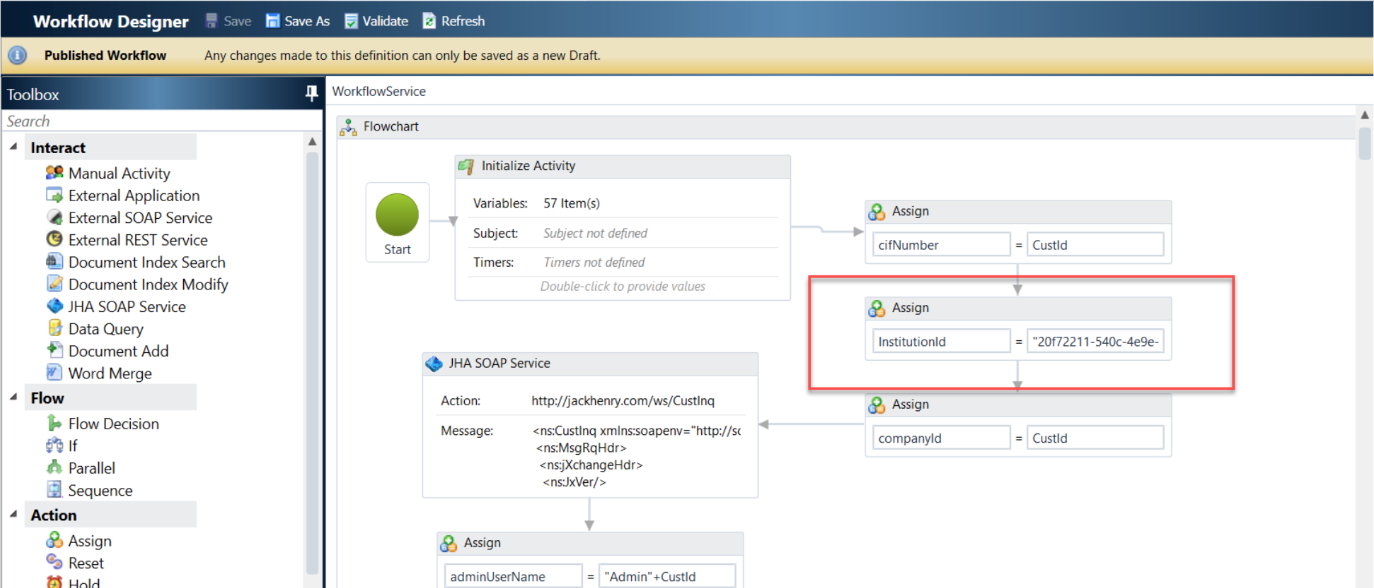
Upon installation completion, an institution ID is provided. Add the ID to the Institution ID Assign field in the Workflow Definition.
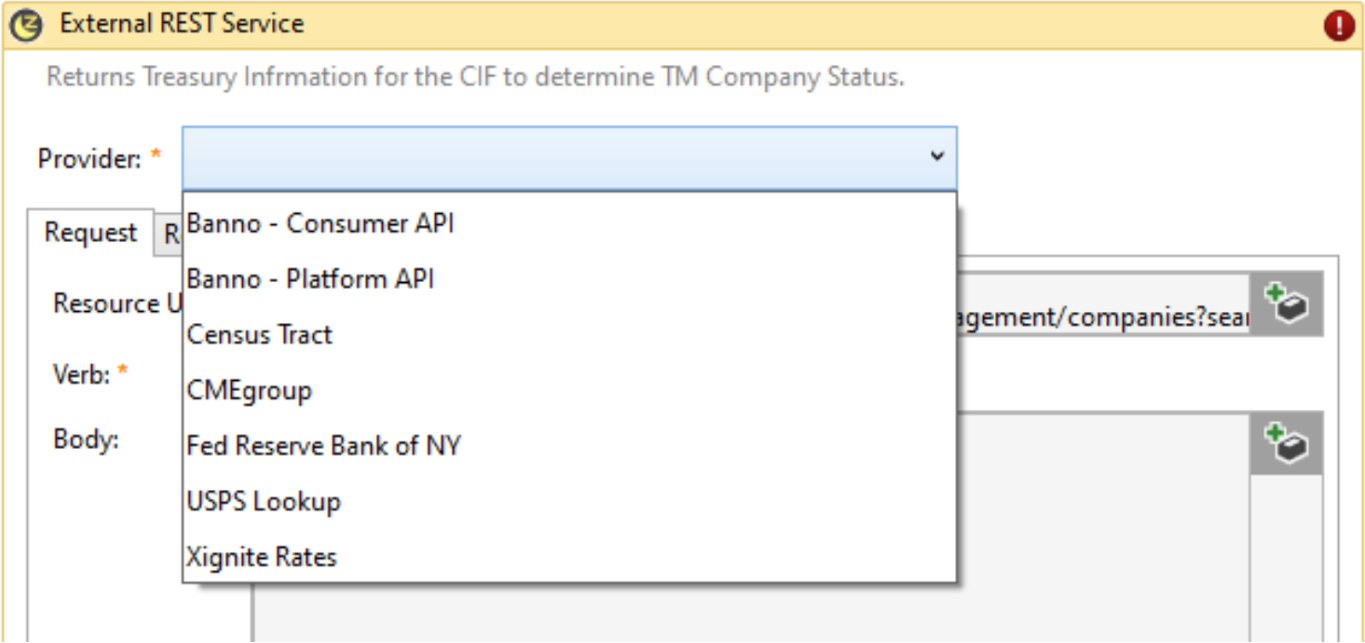
- In each API call, click Provider and select Banno – Platform API.
Add bank group/employee permissions for who can view and run the workflow.
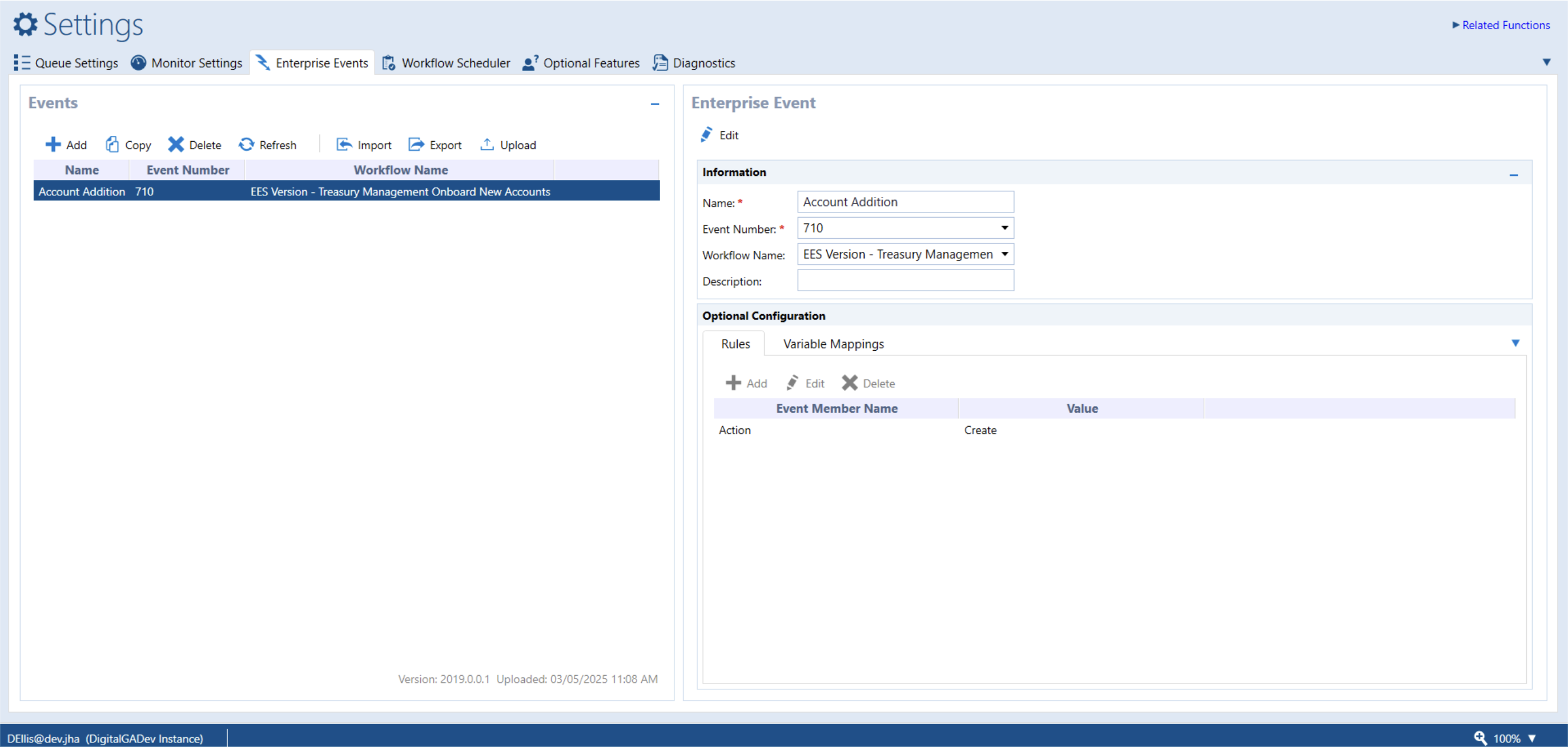
For EES Version Only - In Workflow Administration > Settings > Enterprise Events:
- Add an event for Account Addition - 710 and assign it to the workflow definition.
- On the Rules tab, set the action to “Create.”
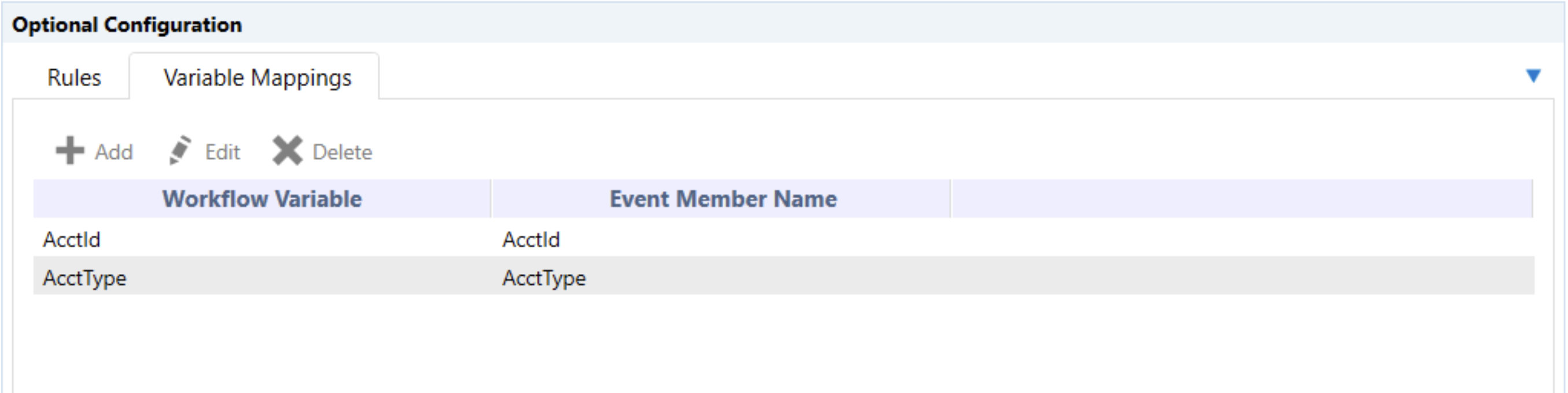
- On the Variable Mappings tab, the Workflow Variables and Event Member Names will be the same. Add one for AcctId and another for AcctType.
How to Use
EES Version (Automatic Workflow)
- Create the account in Silverlake: Associate the account as a primary account to the parent CIF of the Treasury Company where the account should be added.
- Fund the account.
- Set up optional product features in Silverlake (if applicable):
- To enable Wires, add the account to the primarily associated Wire Company.
- To enable Positive Pay, add the account to Positive Pay in Silverlake.Note: This must be completed after end-of-day processing runs in SilverLake, but within 24 hours of the account opening.
- Workflow initiation: The workflow automatically starts once the EES event (710) is received by Enterprise Workflow.
- Account provisioning:
- The account is added to the Treasury Company and eligible products, including information reporting, stop payments, transfers, and account reconciliation.
- The account is added to the Wire Company and Positive Pay in Treasury 24 hours later, provided the corresponding setup was completed in SilverLake.
Account Entry Template (Manual Workflow)
- Create the account in Silverlake: Associate the account as a primary account to the parent CIF of the Treasury Company where the account should be added.
- Fund the account.
- Set up optional product features in Silverlake (if applicable):
- To enable Wires, add the account to the primarily associated Wire Company.
- To enable Positive Pay, add the account to Positive Pay in Silverlake.Note: This must be completed after end-of-day processing runs in SilverLake, but within 24 hours of the account opening.
- Manually start the workflow:
- Navigate to the workflow queue.
- Select Start a Workflow and choose the appropriate workflow template.
- Enter account details:
- When prompted, enter the account number and account type, and then select Complete.
- The account type must be the single‑letter code used in Silverlake (for example, D, L, etc.).
- Account provisioning:
- The account is added to the Treasury Company and eligible products, including information reporting, stop payments, transfers, and account reconciliation.
- The account is added to the Wire Company and Positive Pay in Treasury 24 hours later, provided the corresponding setup was completed in SilverLake.
How to Customize
Adding and Removing Workflow Steps
Each product feature can be removed from the workflow or repurposed to be used in other workflows.
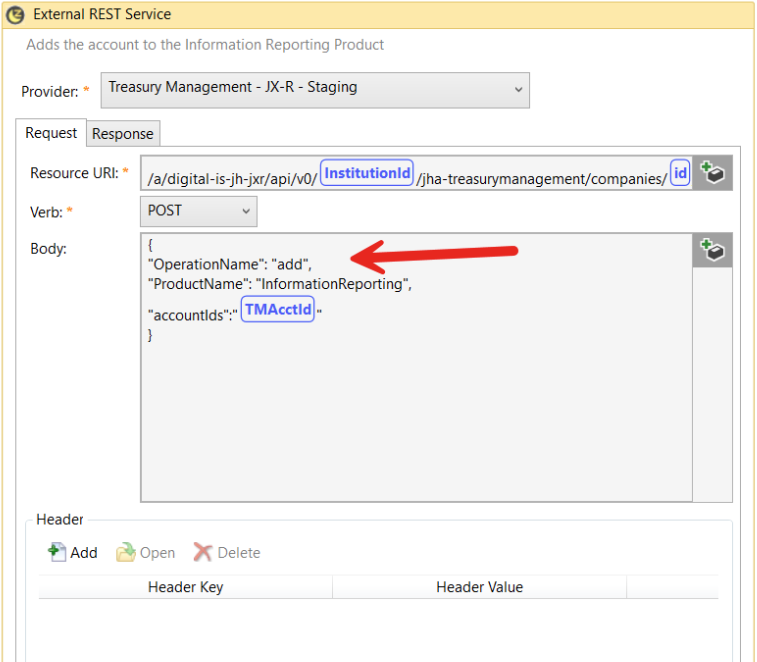
Additionally, within each Product Feature API, the “Operation Name” can be changed from “Add” to “Remove.” This action allows the account to be removed from the product feature list if desired. (For example, if account needs change in the future and a product is no longer necessary.)
24-Hour Hold
The 24-hour hold on the workflow ensures that the account has been added to Positive Pay and Wires in SilverLake. Adding an account to Positive Pay in SilverLake and then adding it to Treasury Management requires end-of-day processing to occur. There are a few different solutions to account for this requirement:
- Use the built-in 24-hour hold. There are no changes necessary to implement. To have the account added to Positive Pay and Wires in Treasury, the financial institution must ensure that Positive Pay and Wires are set up for the account in SilverLake after end-of-day processing and within 24 hours of the workflow being initiated.
- Replace the 24-hour hold with a Manual Activity. To implement:
- Delete the 24-hour hold from the workflow definition.
- Create a manual activity that is assigned to the desired workflow queue.
- Financial institution employee will re-initiate the workflow from this step when SilverLake setup for Wires and Positive Pay is complete.
- Remove Wires and Positive Pay auto-add APIs completely.
- Delete the 24 hour-hold and all APIs for Wires and Positive pay products. This will allow the workflow to complete the partial setup, and the financial institution can login to Treasury Back Office and complete the steps manually for Wires and Positive Pay.
Additional Customization
If additional customization is required, it can be done by modifying the workflow definition. The Enterprise Workflow Consulting team at Jack Henry can also assist with customization requests upon purchase of a block of hours for consulting services. Please email Kayla Singer at ksinger@jackhenry.com for more information.
Treasury Management API Listing
Additional technical specifications will be added to jackhenry.dev in the future. Additions will be announced via Service Level Announcements (SLAs) and the For Clients Portal when available.